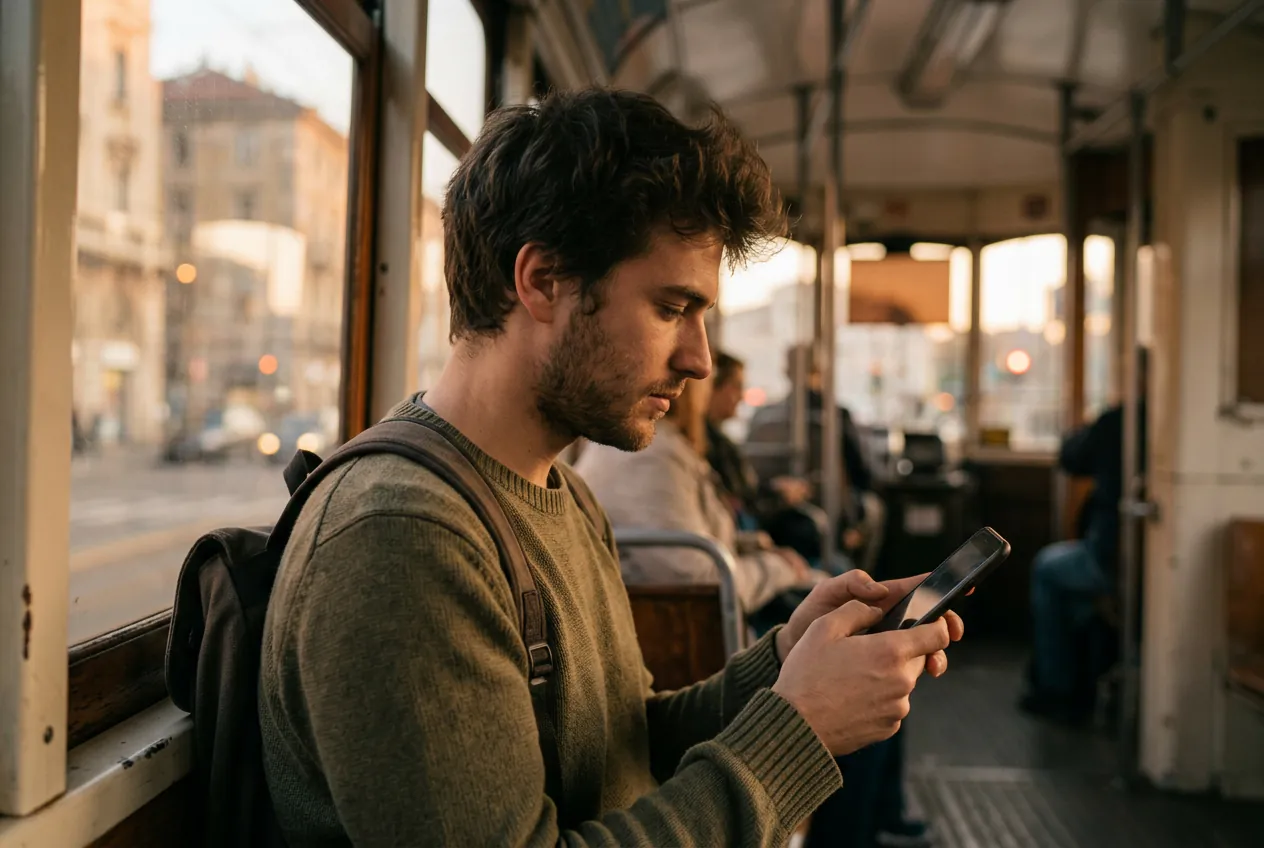
You only meant to watch the video a friend sent you on the tram. Three stops later you're deep in For You. Using TikTok less works best in three levels: the built-in time limit, a calmer feed and a block outside the app. You don't have to delete anything, and your messages stay.
You're not alone: in a survey published in December 2025, 42% of weekly US TikTok users said they spend too much time on it (Edison Research).
Updated October 2026. TikTok's menu names vary by country and version. If something is labeled differently, use the search bar in Settings.
In short
- TikTok's daily limit lives under Settings and privacy › Screen time. It's easy to skip.
- You can refresh For You, turn topics down and, in the EU, switch off personalization.
- A real limit only comes from outside: Screen Time with someone else's passcode, or an app with a finite feed.
Why TikTok is so hard to put down
The For You page never ends and learns from every swipe. In a University of Amsterdam study, 88 participants who used TikTok with a less personalized feed opened it less often, used it for shorter stretches and felt more in control, though they also enjoyed it less (Dekker, Baumgartner & Sumter, 2025).
In February 2026 the European Commission preliminarily found that TikTok's design, with infinite scroll, autoplay and a highly personalized recommender, breaches the Digital Services Act, and that its time tools are easy to dismiss (European Commission). TikTok rejects the findings. The point for you: if stopping is hard, it's not just willpower.
Level 1: Set a screen time limit on TikTok
Daily screen time
Go to your profile, tap the menu (☰) in the top-right corner and open Settings and privacy.
Newer versions group this under Time and well-being. Pick a preset such as 40 minutes or 1 hour, or set your own per weekday. At the limit TikTok shows a notice, depending on your settings with a passcode. But you chose that passcode yourself.
Breaks and sleep reminders
The same area has break reminders after a stretch of continuous use and a sleep time for the evening. Since late 2025 there are also missions and a badge for sticking to your limit (TikTok Newsroom).
Level 2: Reset your For You page
A feed that grips you less makes stopping easier. Everything below sits under Settings and privacy › Content preferences.
- Manage topics: sliders set how often topics like sports or travel show up. They don't disappear entirely (TechCrunch).
- Refresh your For You feed: TikTok forgets your taste and starts over as if your account were new. You can't undo it (Tom's Guide).
- Switch off personalization (EU only): For You then shows popular videos from your area instead of ones picked for you (TikTok Newsroom, 2023). The feed gets more boring, which is the point.
- Not interested: press and hold a video and choose Not interested. Tedious, but targeted.
Level 3: Block TikTok on your iPhone
In-app limits share one weakness: TikTok decides how easy they are to skip. These steps sit outside the app:
- Turn off notifications: every notification is an invitation back.
- Get it off your Home Screen: press and hold the icon, tap Remove App, then Remove from Home Screen. It stays in your App Library.
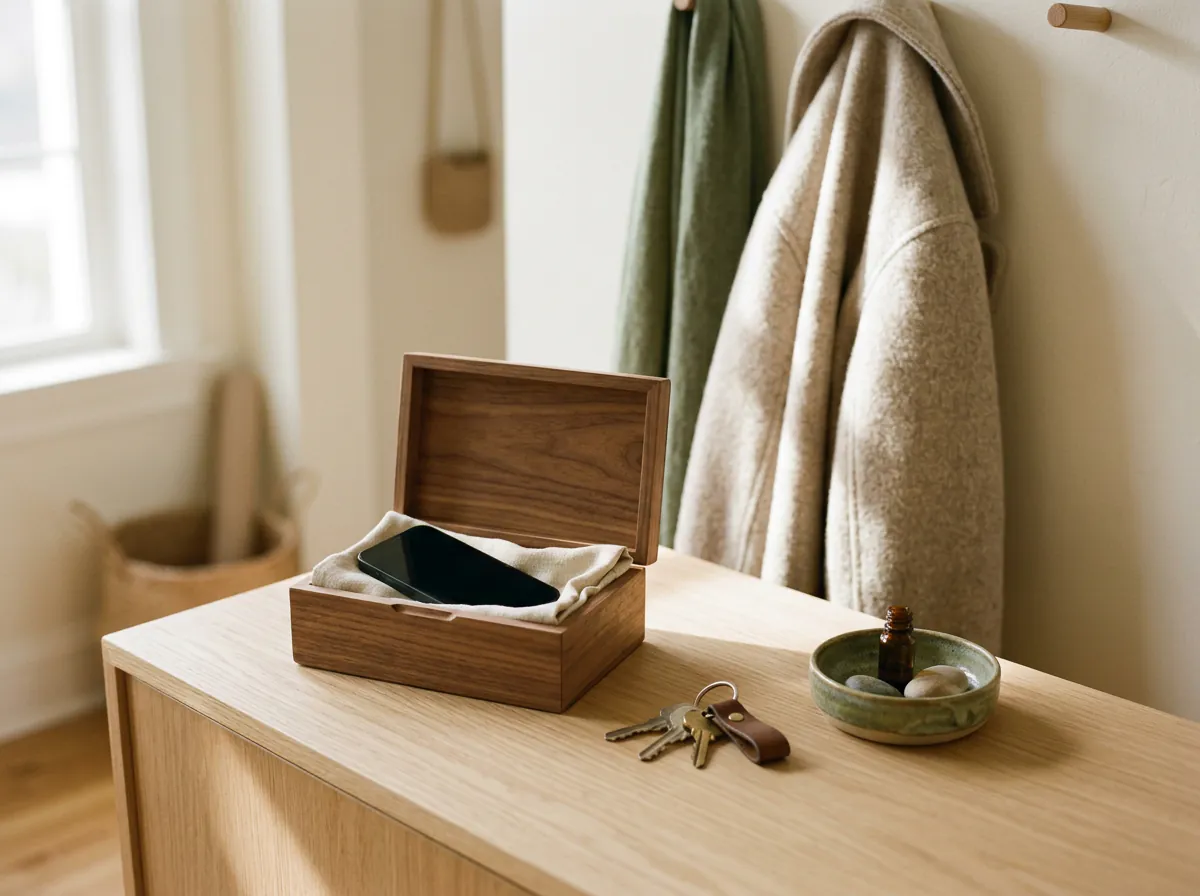
- Block TikTok with Screen Time: a daily budget with a passcode you don't know. Our guide on how to set app limits on iPhone covers the iOS 27 menus.
Keep TikTok, lose the feed
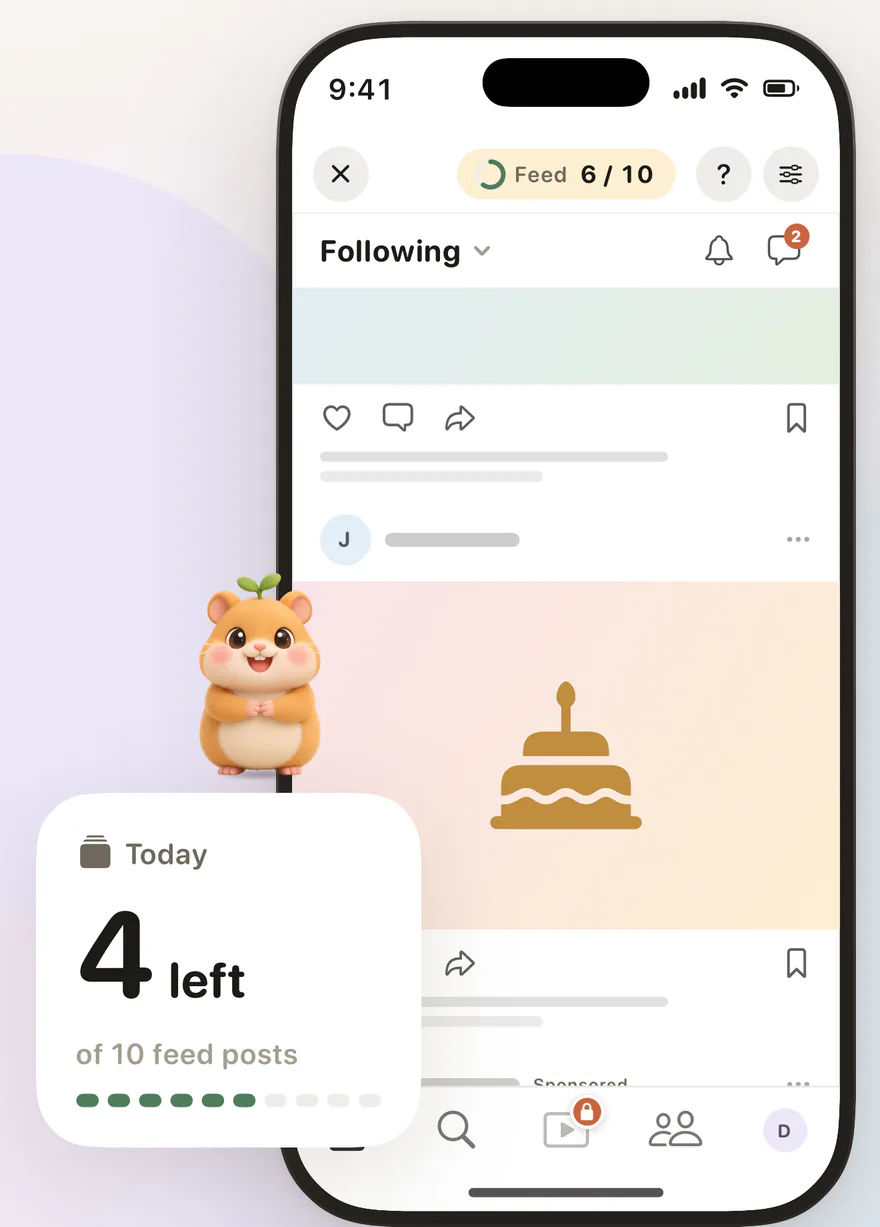
Screen Time blocks TikTok entirely, including your friends' messages. Feedbye separates the two: you open TikTok in our iPhone app, For You and LIVE are hidden, messages and profiles stay. Videos someone sends you still open. After your daily limit the feed is done for the day.
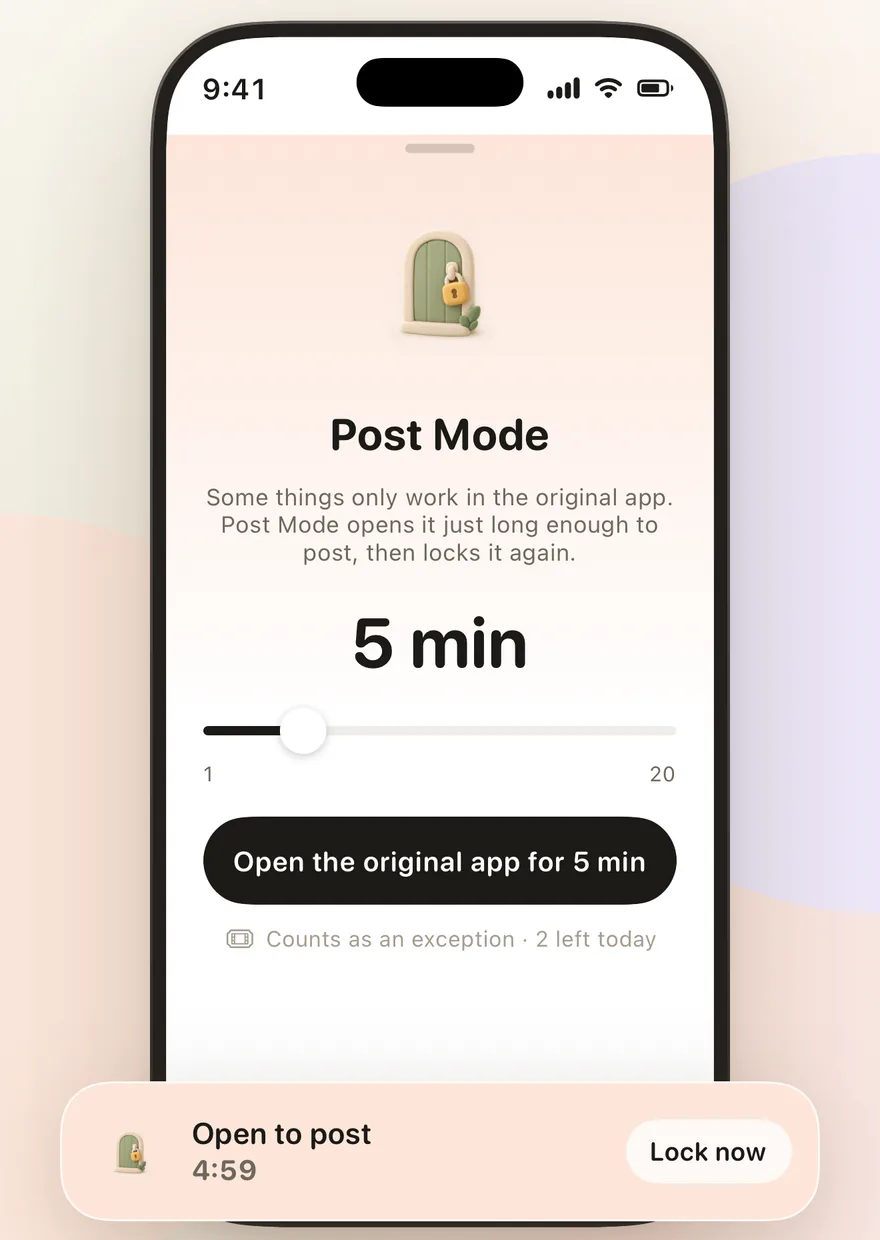
You block the TikTok app itself with Apple's Screen Time. When you want to post, Post Mode opens it for a few minutes and then locks it again.
 Endless feed gone, messages stay: TikTok with FeedbyeGet the app
Feedbye is independent and not affiliated with TikTok or ByteDance.
Which level fits you?
| Your goal | What helps most |
|---|---|
| A bit less, little effort | TikTok's daily limit plus notifications off |
| A feed that doesn't grab you as hard | Manage topics, refresh the feed, in the EU turn off personalization |
| No more late-night scrolling | Sleep reminders plus a Screen Time Schedule on your iPhone |
| No feed at all, but keep your friends | Block the TikTok app with Screen Time, use TikTok in Feedbye |
The same approach works for Instagram Reels and YouTube Shorts.
FAQ
How do I set a screen time limit on TikTok?
Go to your profile, tap the menu in the top-right corner and open Settings and privacy. Under Screen time, tap Daily screen time and set a limit, either the same every day or different for each day of the week.
How do I block TikTok on iPhone?
With Screen Time: give TikTok a time budget under Settings › Screen Time and let someone else set the passcode. If you want to keep your messages, block the TikTok app and use TikTok through an app with a finite feed, such as Feedbye.
Can you turn off the For You page on TikTok?
Not completely. You can refresh it, turn topics down with Manage topics and, in the EU, switch off personalization so you see popular videos instead of ones picked for you.
Is TikTok's screen time limit enough on its own?
For many people it isn't, because it's easy to skip. In 2026 the European Commission preliminarily criticized TikTok's time tools as easy to dismiss. A limit works better combined with a calmer feed and a block outside the app.
Is Feedbye connected to TikTok?
No. Feedbye is an independent iPhone app and is not affiliated with TikTok or ByteDance.