
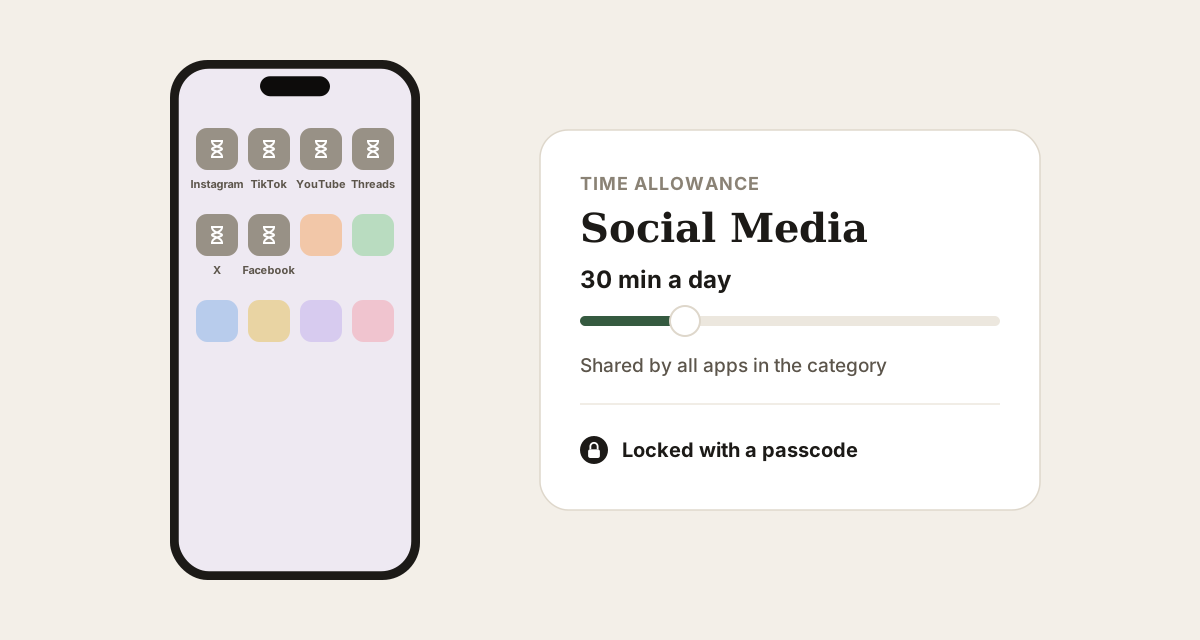
Screen Time lets you limit Instagram, TikTok and YouTube on your iPhone without an extra app. With iOS 27 the features have new names: App Limits became Time Allowances, and Downtime became the Screen Time Schedule. Here are the steps with the real menu names, plus iOS 26.
Updated October 2026. The steps follow Apple's official iPhone User Guide for iOS 27 (Set up Screen Time for yourself, Set schedules and time allowances).
Key takeaways
- On iOS 27 you limit social media with Time Allowances (formerly App Limits) and a Screen Time Schedule (formerly Downtime).
- Without a Screen Time passcode, any limit can be skipped with one tap. Ideally, let someone else set the passcode.
- Screen Time blocks whole apps, not individual feeds like Reels or Shorts.
- The new features need iOS 27, and the matching 27 versions on any other Apple devices you sync with.
What changed in iOS 27
Apple sums it up like this: Time Allowances set how long you can use your apps each day, and Schedules set when during the day you can use them. Instead of one limit per app, you work with categories such as Entertainment, Games or Social Media. If an app declares an associated website, the Time Allowance applies to both (Apple).
| Feature | iOS 27 | iOS 26 |
|---|---|---|
| Daily time budget | Time Allowances | App Limits |
| Set times without apps | Screen Time Schedule | Downtime |
| Exceptions | Always Allowed | Always Allowed |
| Set a passcode | Manage Screen Time › Lock Screen Time Settings | scroll down › Lock Screen Time Settings |
One requirement: if you share Screen Time across devices, your iPad and Mac need their 27 versions too.
Step by step on iOS 27
Turn on Screen Time
Open Settings, tap Screen Time, then Manage Screen Time, and tap Turn On App & Website Activity.
After that, Daily Average shows how much time you spend in which apps. Watch it for a few days before you set limits. A realistic limit sits a bit below your current average, not at zero.
Create a Social Media Time Allowance
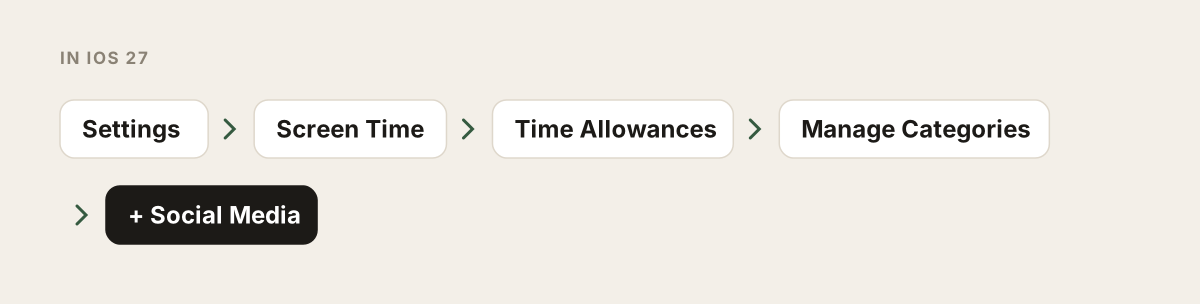
In Screen Time, tap Time Allowances, then Manage Categories and the plus button, choose Social Media and drag the slider to set your daily time.
You can use apps in a category until you reach either that category's allowance or your overall daily total. The budget is shared: 30 minutes means 30 minutes for Instagram, TikTok and the rest combined.
Check which apps the category includes
In Manage Categories, tap Social Media and check which apps are counted in it.
This is the most common trap. Messaging apps can count as social apps too. If WhatsApp or Messages are included, your family group chat goes dark when time runs out. Put those apps under Always Allowed in step 5. Reports on iOS 27 also say you can create your own categories and move apps between them (9to5Mac).
Set up a Screen Time Schedule
Tap Screen Time Schedule, turn on Schedule, tap Add Schedule, pick the days and add time windows in which Social Media isn't available.
Each time window has a name, a start and end time, and the categories that are available during it. A pattern that works for many people: a "Morning" window until 9 a.m. and an "Evening" window after 9 p.m., both without Social Media. You can give weekends their own schedule.
Choose apps and people that are always allowed
Tap Always Allowed and use Add Apps and Add People for anything that should stay reachable at all times.
Apple's example is family members for emergencies. Maps, your banking app or work tools can make sense too. Just remember that every app on this list is also a potential back door.
Lock your settings with a passcode
Tap Manage Screen Time, then Lock Screen Time Settings, and enter a four-digit passcode twice.
Without a passcode, every limit is a suggestion. It works best when someone else types the passcode, such as your partner, a roommate or a friend (Apple: Screen Time passcode). If you set up passcode recovery with your Apple Account, you can reset the passcode yourself later. Handy, but also a loophole.
Time's up: what "Ignore Limit" does
Apps in the category are blocked and you see a message that your allowance is used up. Ignore Limit lets you continue; if a passcode is set, hands-on reports say your iPhone asks for it (iGeeksBlog). The budget resets at midnight.
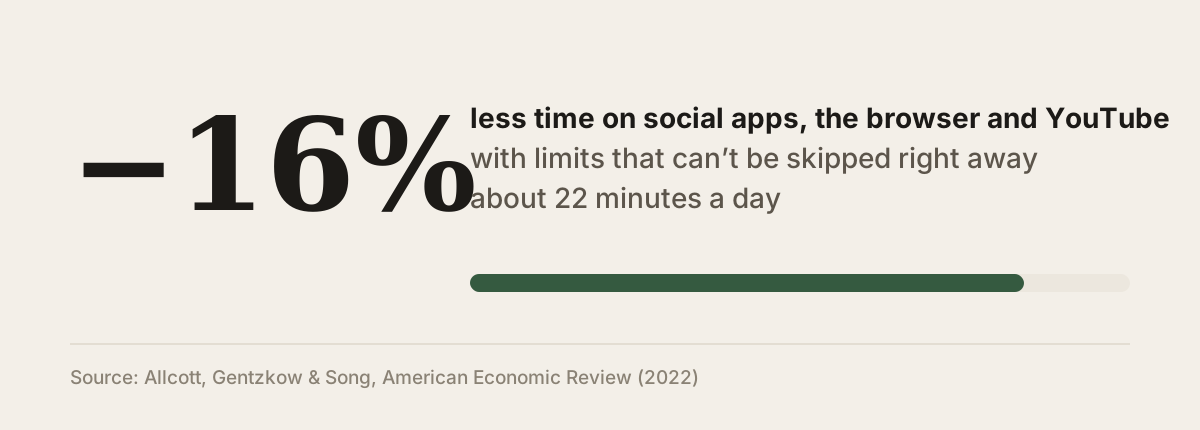
That skip button is the crux. In a randomized study of about 2,000 US adults on Android phones, limits that couldn't be overridden right away cut time on social apps, the browser and YouTube by 16%, about 22 minutes a day. The authors explicitly contrast this with flexible tools like iOS Screen Time (Allcott, Gentzkow & Song, 2022). The harder a limit is to skip, the more likely it holds.
Still on iOS 26? Here are the old menus
On iOS 26, Screen Time uses the familiar names (Apple, iOS 26):
- App Limits: Settings › Screen Time › App Limits › Add Limit. Choose the social networking category, or tap it to pick individual apps, then Next, and set the time. Customize Days lets you set different limits for weekends.
- Downtime: Screen Time › Downtime › Scheduled, then Every Day or Customize Days. With a passcode set, turn on Block at Downtime so apps can't be opened during downtime.
- Passcode: Scroll down in Screen Time and tap Lock Screen Time Settings.
Where Screen Time falls short
- Whole apps only: Screen Time can't block just Reels or just Shorts. For what the apps themselves allow, see how to turn off Instagram Reels and how to turn off YouTube Shorts.
- All or nothing: Once the budget is gone, messages and Stories in that app are gone too.
- You're the rule-maker and the rule-breaker: If you know your own passcode, you can lift any limit.
That's where Feedbye comes in. Our iPhone app uses Apple's Screen Time to block the original apps so you don't slip back. Instead, you use Instagram, YouTube, TikTok, Threads, X and Facebook in Feedbye without Reels, Shorts and For You, with a daily limit of feed posts, say 10, and three exceptions a day. Friends, messages and Stories stay. When you want to post, Post Mode opens the original app for a few minutes and then locks it again. Feedbye is independent and not affiliated with Apple, Meta, Google, ByteDance or X.
To see how it all fits into a gentle detox, try our social media detox checklist, or get an overview of Feedbye on the home page.
FAQ
Where did App Limits go in iOS 27?
In iOS 27 Apple replaced App Limits with Time Allowances, daily time budgets for categories such as Social Media. Downtime is now part of the Screen Time Schedule.
Why can I still ignore my Screen Time limit?
Because Screen Time is designed to be flexible for adults. Without a passcode, an expired limit can be skipped with one tap. A passcode makes it harder, but only if you don't know the passcode yourself.
Can Screen Time block only Reels or Shorts?
No. Screen Time limits whole apps, categories and their associated websites, not sections inside an app. For Reels and Shorts you need the apps' own settings or an app that hides those feeds.
What if I forget my Screen Time passcode?
If you set up Screen Time Passcode Recovery, you can reset the passcode with your Apple Account. Apple offers this right after you create a passcode.