You open YouTube for one tutorial, tap a Short, and half an hour is gone. Since 2026 you can set the Shorts feed limit in the YouTube app to zero minutes. Here is how to set it up on iPhone, and where it falls short.
Updated October 2026. YouTube rolls features out in stages, so update the app first if a menu is missing.
Key takeaways
- In the YouTube app, Time management now has a Shorts feed limit, and you can set it to zero.
- Zero pauses scrolling in the Shorts feed. Individual Shorts can still appear, and adults can dismiss the reminder.
- The setting only exists in the app, not on the website.
- Pair it with the Subscriptions feed, reminders and iPhone Screen Time and YouTube gets a lot calmer.
Can you turn off YouTube Shorts?
Partly. In October 2025 YouTube added a daily time limit for the Shorts feed, with options from 15 minutes to 2 hours (TechCrunch). In January 2026 parents got a zero-minute option for supervised teen accounts, and in April 2026 the zero option reached adult accounts too (Engadget).
Google's help page calls it "Set a Shorts feed limit". When you hit your limit, a message reminds you, and you can dismiss or ignore it (YouTube Help). That's the weak spot: for adults it's a deliberate speed bump, not a lock.
Step by step: how to get rid of Shorts on iPhone
Set your Shorts feed limit to zero
In the YouTube app, tap the You tab, then Settings, Time management and Shorts feed limit, and pick zero.
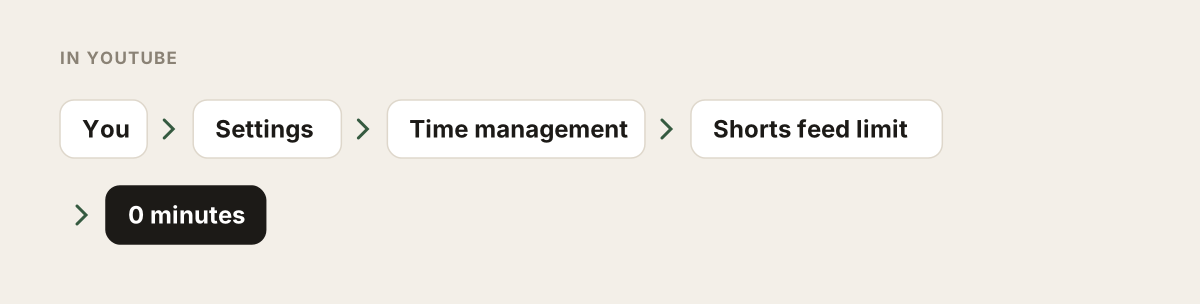
From then on, scrolling in the Shorts feed is paused for the day. Early hands-on reports say you may need to restart the app before it kicks in. Single Shorts that someone sends you, or that turn up in search, can still play (Engadget). If zero feels too strict, choose the shortest limit. A boundary you picked on purpose beats no boundary.
Dismiss the Shorts shelf on Home
On the Shorts section of your Home feed, tap the three dots or the X and tell YouTube you want to see fewer Shorts.
This hides the shelf for a while. YouTube doesn't document how long; most reports say around 30 days before Shorts return. Treat it as a bonus, not a fix.
Start from Subscriptions, not Home
Right after opening the app, tap Subscriptions at the bottom instead of staying on Home.
Home is built for discovery. Subscriptions shows channels you chose yourself. It's a tiny habit that changes how YouTube feels. Shorts can appear in Subscriptions too, but only from channels you picked.
Turn on break and bedtime reminders
Tap your profile picture, then Settings and General, and turn on Remind me to take a break and Remind me when it's bedtime.
Both are documented in YouTube Help (take a break, bedtime). They interrupt long sessions, especially late at night. You can dismiss them too, but they add a moment of awareness.
Cap YouTube with iPhone Screen Time
In your iPhone's Settings, open Screen Time, give YouTube a daily time budget and lock it with a Screen Time passcode.
This limits the whole app, including longer videos you may actually want. In iOS 27 the tool is called Time Allowances; our guide on how to set app limits on iPhone walks through it.
Advanced: pause your watch history
A more drastic trick: if you pause your YouTube watch history and have no meaningful recent history, YouTube says recommendations on the Home feed are removed (YouTube Help). You'll find it under Settings, Manage all history, Controls, where you clear "Include the YouTube videos you watch". The trade-off: you lose recommendations everywhere, and Google doesn't say what happens to Shorts. For most people, step 1 is enough.
What doesn't work
- YouTube in a browser: youtube.com and m.youtube.com still show Shorts, and reports say the limit doesn't apply there (Android Headlines).
- Browser extensions: They mostly exist for computers and do nothing in the iPhone app.
- Modded YouTube apps: Unofficial builds without Shorts put your Google account at risk.
- Blocking only Shorts with Screen Time: iPhone Screen Time works on whole apps, not on sections inside them.
What about Instagram and TikTok?
Instagram still has no comparable switch for Reels; our guide on how to turn off Instagram Reels covers what does work. For TikTok, see how to use TikTok less.
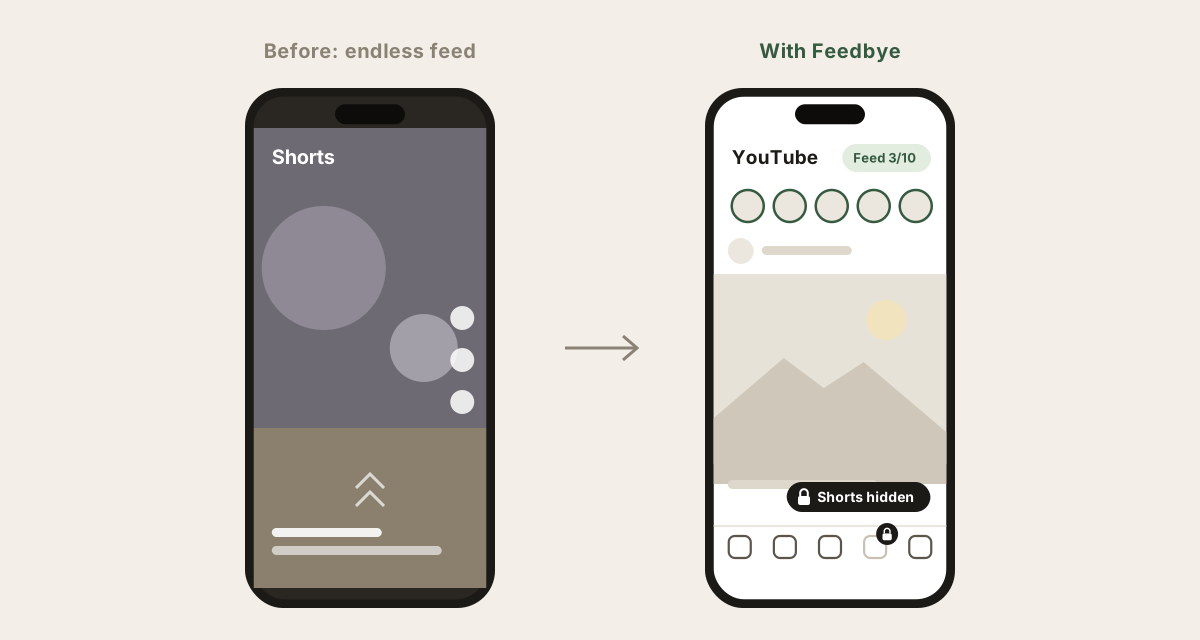
If you'd rather not fiddle with settings in every app, there's Feedbye. Our iPhone app lets you use Instagram, YouTube, TikTok, Threads, X and Facebook without the endless feeds: Shorts, Reels and For You are hidden, while subscriptions, friends, messages and Stories stay. Each app gets a daily limit of feed posts, say 10, and then the feed is done for the day, with three exceptions a day. You can block the original apps with Apple's Screen Time so you don't slip back, and Post Mode opens one for a few minutes when you need to post, then locks it again. Feedbye is independent and not affiliated with Google or YouTube.
See how it fits into a gentle social media detox on the Feedbye home page.
FAQ
Can you turn off YouTube Shorts completely?
Not entirely. Setting the Shorts feed limit to zero pauses scrolling in the Shorts feed, but individual Shorts can still show up, and on adult accounts the reminder can be dismissed.
Why can't I find the Shorts feed limit?
Update the YouTube app first, because YouTube rolls features out gradually. The setting lives in the app under Settings and Time management. Reports say it isn't available on the website.
Does the Shorts feed limit work in a browser?
No. Google describes the setting for the YouTube app. On the website, including m.youtube.com in Safari, Shorts are still there without the limit.
Can I block Shorts for my kid?
Yes, with a supervised account. Since 2026 parents can set a teen's Shorts feed limit to zero, and unlike on adult accounts, the teen can't dismiss it.
More detail from MediaNama.
Is Feedbye connected to YouTube or Google?
No. Feedbye is an independent iPhone app and is not affiliated with Google or YouTube.